Zoho CRM: Bring Your Data from Screen to Paper with Canvas Print View
Hello Everyone,
Zoho introduces a brand-new enhancement to your Zoho CRM Canvas experience — Print View.
This feature allows you to convert your beautifully designed Canvas layouts into print-ready documents, making it easier than ever to take your CRM data from screen to paper.
What Can You Do with Print View?
With Canvas Print View, you can print:
A single record
Selected records
Or multiple records per page
…onto physical sheets right from your CRM.
Simply:
Create a custom layout in Canvas with fields pulled automatically from your CRM modules
Produce clean, structured mailing labels
Print on standard formats like A4 or Letter
Enable cutting guides for easy separation
Reduce manual work and eliminate formatting hassles
Scenario 1: Printing Shipping Labels from Your CRM
Imagine you manage a courier or delivery service and rely on Zoho CRM to store all customer details. Your team needs address labels every day for outgoing shipments.
With Print View, you can:
Design a custom label format using Canvas
Auto-populate customer details directly from the Contacts module
Generate a full sheet of neat, printable labels
Add cutting lines for easy trimming
Print them instantly on A4 or Letter paper
Just like that — your team has accurate, ready-to-use shipping labels for daily dispatch.
Scenario 2: Service Report Forms for an Automotive Repair Shop
Suppose you operate a vehicle service center using Zoho CRM to register service jobs, customer information, complaints, and repair details.
Once a technician completes a service and logs the details — such as vehicle model, work performed, parts used, labor charges, and total amount — you can use Print View to generate a clean, professional Service Report.
The printed report can include:
Customer name and contact information
Service number and service date
Vehicle details, issue diagnosed, and feedback
Other Use Cases for Print View
You can also use Canvas Print View to create print-ready templates for:
Course sheets, student promotion letters, or academic summaries
Event-related documents like resumes, ID cards, or visitor badges
Certificates, agreements, contracts, warranty papers, and more
Any scenario that requires structured, personalized printouts can benefit from this feature.
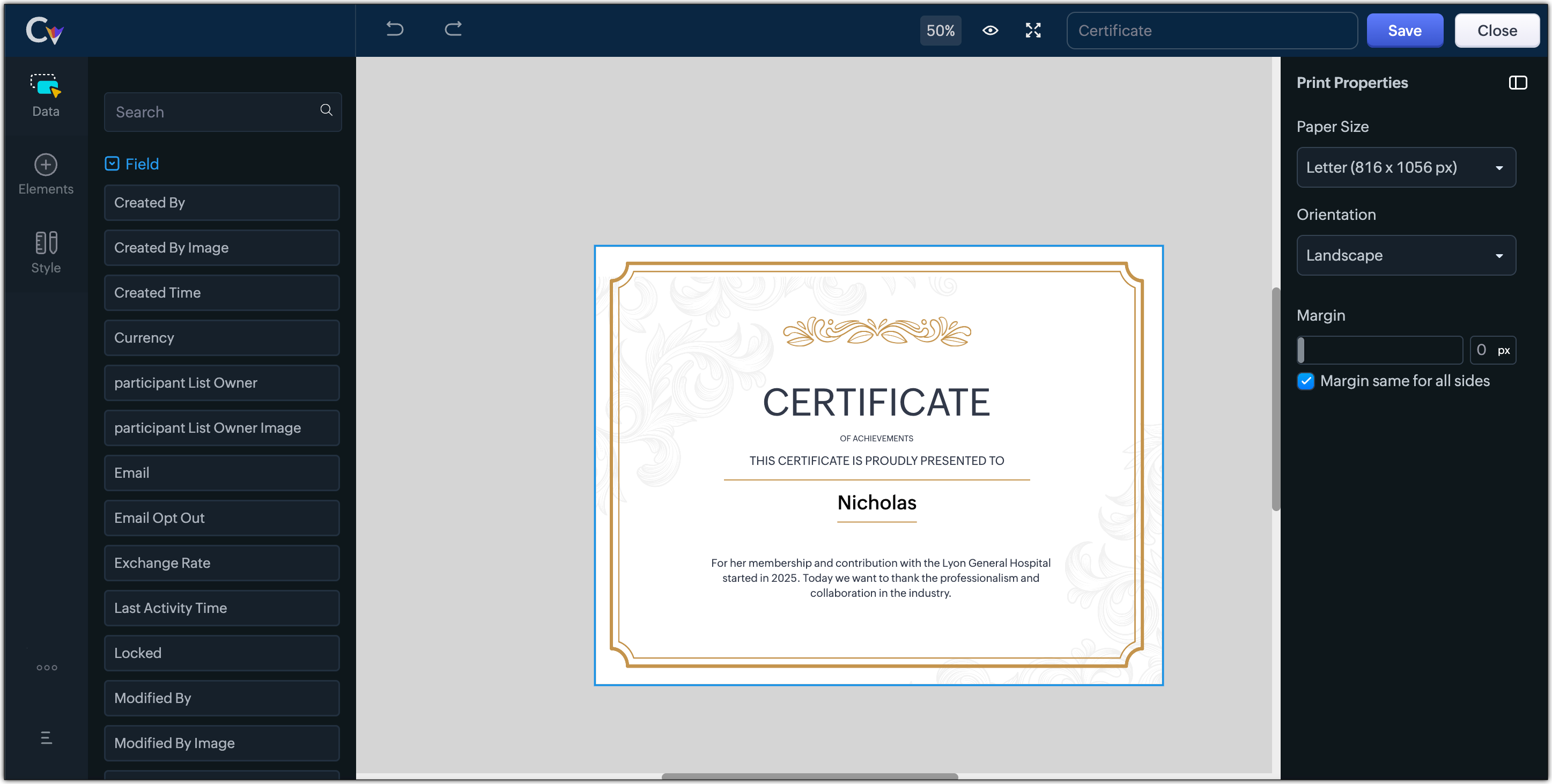
Customization Options for Printing Mailing Labels
Canvas Print View offers a robust set of design controls:
Paper Sizes
Choose from multiple mailing-label layouts based on your printer or stationery type.
Orientation
Switch between Portrait and Landscape modes.
Margins
Set precise margins or apply uniform margins across all sides with one click.
Print Record In:
You can print labels:
Per page: With options to align content centrally
As a list: With center alignment and cutting lines
As a grid: With center alignment, auto-width adjustment, and cutting lines
Additional Settings
Align Center: Center your content or adjust freely
Auto Width: Auto-fit content within the design
Cutting Lines: Show guides to neatly separate sections or labels
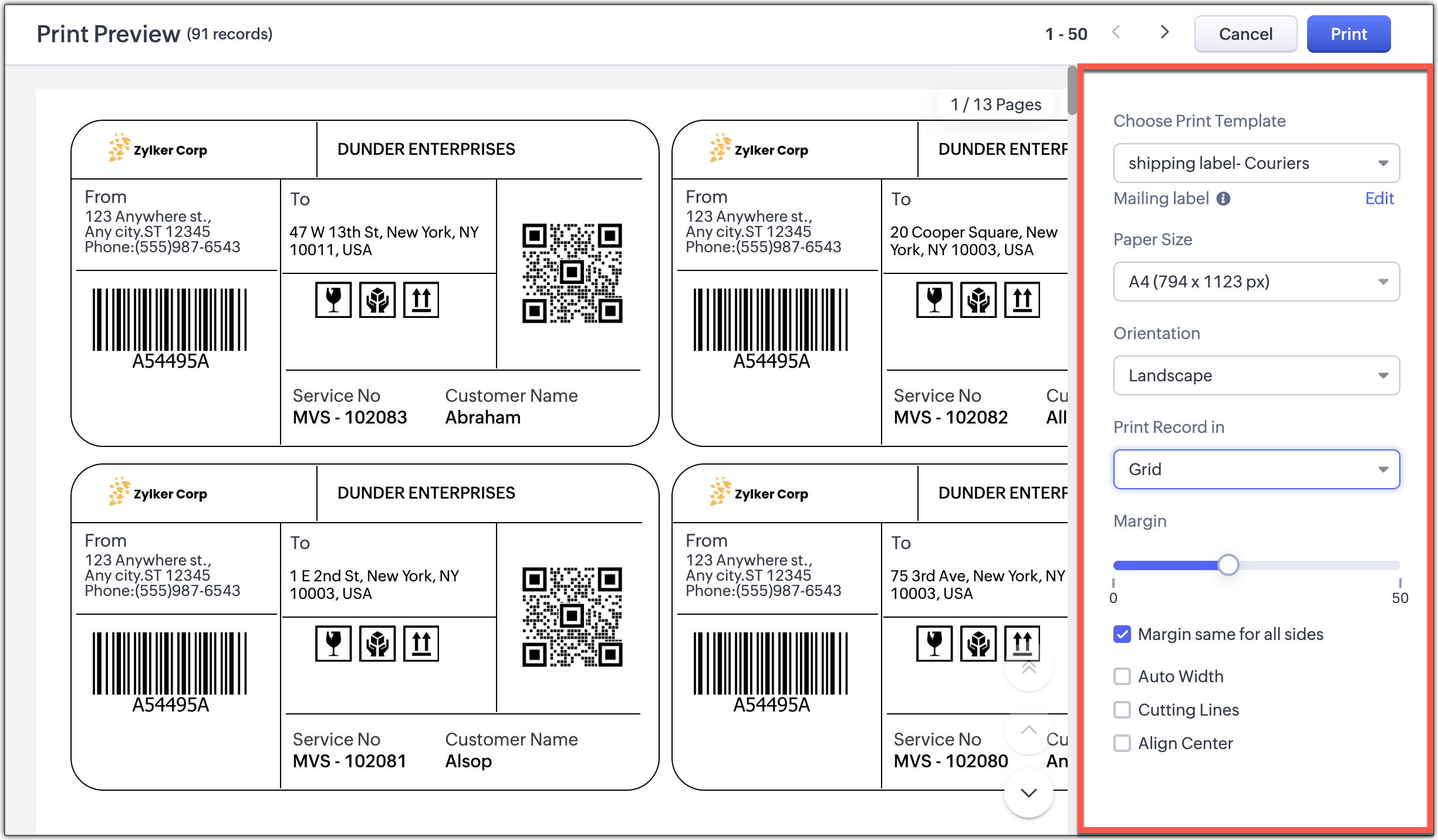

- Align Center : Aligns your content to the center of the page or adjust freely
- Auto Width : Enable this setting to fit content dynamically within the layout
- Cutting Lines : Add visible cutting guides to clearly separate labels or sections on the page
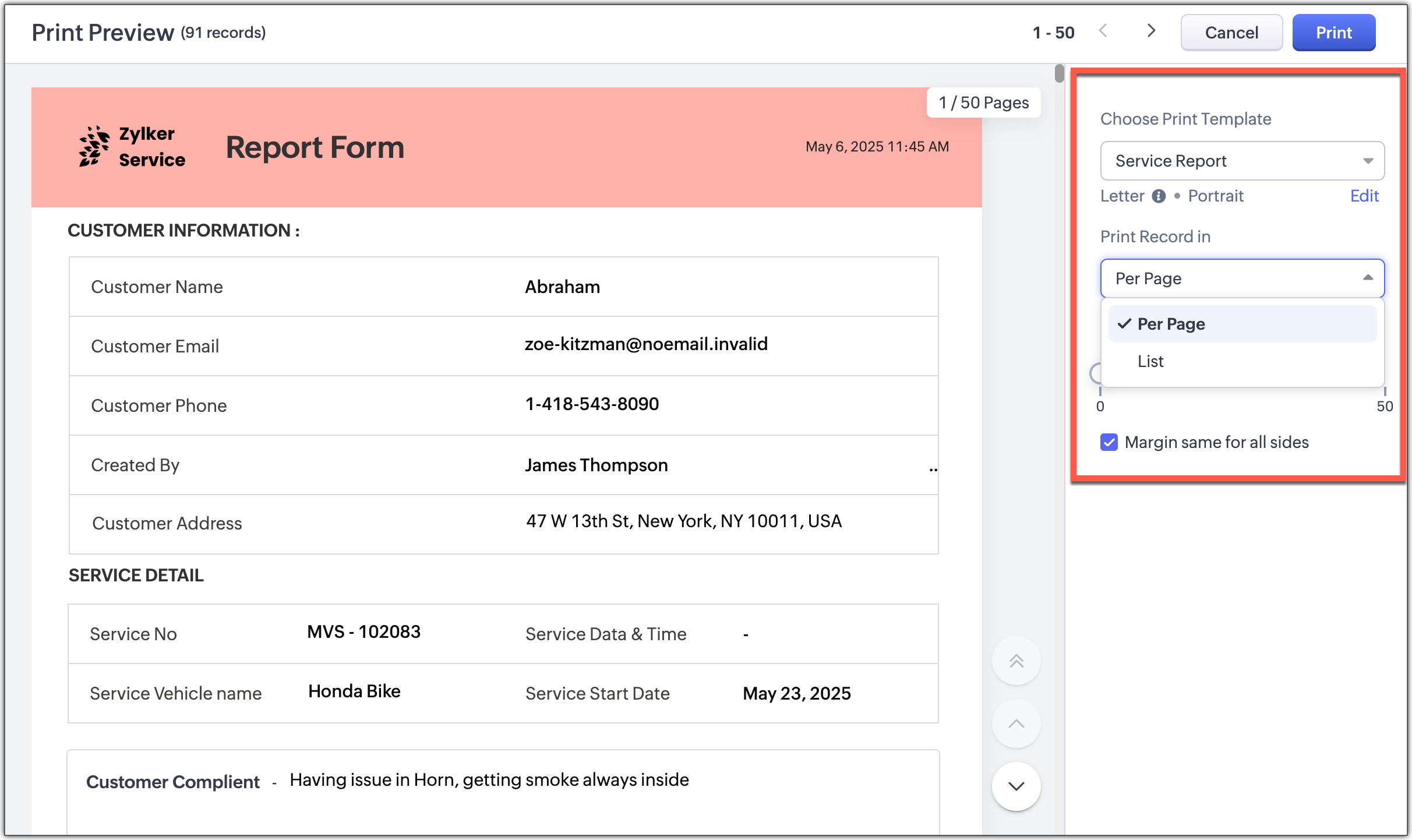
Customization Options for A4 or Letter-Sized Printouts
When printing full-page templates:
Set margins or apply equal margins globally
Print one record per page or records in a list format
Enable cutting lines for list-style layouts

Wrap-Up
No more exporting data, switching tools, or adjusting layouts manually. Canvas Print View lets you design and print polished documents tailored perfectly to your business needs — all within Zoho CRM.
Head to your Canvas builder, select Print View, and start creating templates that look just as impressive on paper as they do on screen.
Related Articles
Zoho CRM: Enhanced Timeline View to Track Every Data Update — Even Imports & APIs!
Note: This enhancement is currently available under Early Access and will soon be rolled out to all data centers (DCs) and editions of Zoho CRM. Once live, it will be accessible to every user in your organization, irrespective of their profile or ...Zoho CRM: The Canvas Record Form for Enhanced Customization
Zoho announced Zoho Crm innovation with Canvas functionality now extends to record forms, enabling you to personalize record entries with the power of Canvas! Enhancing CRM Interactions with CanvasIn the heart of any CRM lies the ability to manage ...Zoho CRM : Enhances Data Export with XLSX Files, Charset Control, and Smart Record Filters
Greetings all, Zoho knows how important it is for businesses to move their data easily and in the right format. That’s why Zoho introduced the latest updates to the Export feature in CRM. These enhancements give you more control, more flexibility, ...Zoho CRM Gets Better: Explore the New NextGen UI Experience
Hello Everyone, Zoho introduced a refreshed version of Zoho CRM for Everyone’s Nextgen UI, redesigned based on your valuable feedback. Our goal was simple: improve clarity, free up screen space, and make navigation smoother—so your everyday CRM tasks ...Zoho Desk Makes It Easier to Manage Calls, Events, Tasks, Contacts, and Accounts with New Table View
Hello everyone, Zoho announced that Table View, previously available only in the Tickets module, is now extended to the following modules: Calls Events Tasks Contacts Accounts Managing customer interactions and activities can often be a ...